
Ping VPN
F2PTools
4.9853.00 Reviews
- Version
- 1.2.0
- Installs
- 10.00M
- Age Rating
- Everyone
Screenshots
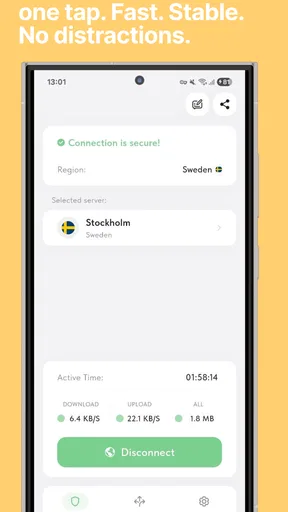
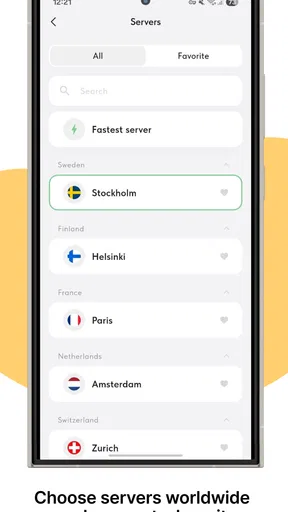
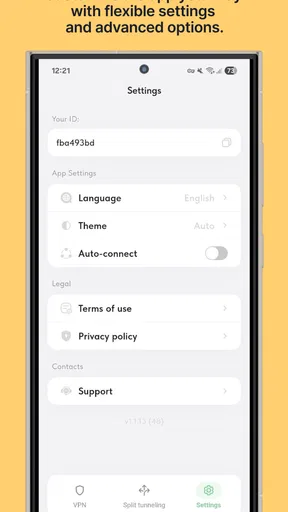
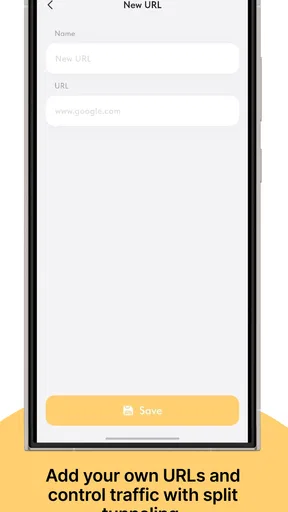
Our Review of Ping VPN
 Analysis by Appyee
I approached Ping VPN as a practical everyday tool rather than treating the word “VPN” as a promise that automatically solves every connection problem. Developed by F2P, this free Android app sits in the tools category and is aimed at people who want a simpler route to online privacy and access. My overall impression is positive, especially if you want to try a VPN without paying first, but the experience depends heavily on understanding what a VPN can and cannot fix.
The app has attracted a strong response from Android users, with an average rating of 4.9 from around 116 thousand ratings and more than 10 million installs. Those figures suggest that many people find the basic experience approachable. Still, a high rating does not remove the need for sensible setup checks. A VPN changes how your connection is routed; it does not repair a weak Wi-Fi signal, an overloaded phone, an unavailable website, or an account that has been blocked for another reason.
Where people usually get stuck with Ping VPN
The first point of friction is often the simplest one: a user expects to tap the VPN and immediately solve every online problem. In practice, the app needs a working internet connection before it can create a protected route. If your phone is already struggling to load ordinary pages, switching on a VPN may not help and can make the delay feel more noticeable while the connection is being established.
I recommend testing the phone’s connection before opening the app. Load a familiar website or refresh a service you already use. If that fails, check whether the problem happens on both Wi-Fi and mobile data. This small comparison is more useful than repeatedly tapping the connect control, because it separates a local network problem from a VPN connection problem.
Another common source of confusion is the Android permission prompt that appears when a VPN connection is requested. This is a normal part of Android’s VPN system, not proof that the app has failed. Read the prompt carefully and approve it only when you are comfortable using the service. If the prompt is dismissed, the app cannot complete the connection, so returning to the app and trying again may be necessary.
There can also be a delay between requesting a connection and seeing that it is active. I would avoid switching repeatedly between apps during that moment. Give the connection a little time, then verify it inside the app before assuming that all traffic has changed route. A visible connection state is more reliable than guessing from whether one particular website loads.
Users sometimes blame the VPN when only one app refuses to work. That is not always a VPN issue. Some services restrict access by region, detect unusual traffic patterns, require a fresh sign-in, or depend on a server that is temporarily unavailable. If ordinary browsing works while one service does not, the sensible next step is to test another site or app rather than repeatedly reconnecting.
There is also a practical trade-off between privacy and speed. Routing traffic through a VPN can add another step between the phone and the destination. For reading, messaging, and ordinary browsing, that may be barely noticeable. For a large download, a video call, or a competitive online game, even a small change in responsiveness matters more. I would not judge the app solely by one demanding activity.
Small checks that prevent unnecessary troubleshooting
Before deciding that Ping VPN is unreliable, I use a short sequence. I confirm that the phone has internet access, close any page that is stuck loading, open the VPN app again, and wait for the connection state to settle. If Android asks for permission, I handle that prompt rather than dismissing it automatically. Then I test a simple website before returning to the service that originally caused concern.
This order matters because it avoids mixing several changes at once. If you change networks, restart the phone, reconnect the VPN, and clear an app’s data simultaneously, you lose the ability to identify what actually helped. A calm, one-change-at-a-time approach is especially useful on a phone shared with work, school, or family accounts.
Setup checks that make the first session smoother
Ping VPN is free, which makes it easy to try without committing money. That is a genuine advantage for a casual user who wants to understand whether a VPN fits a particular routine. I would begin with a low-stakes task, such as opening a few ordinary pages, rather than starting with banking, a time-sensitive meeting, or a large file transfer.
The app is listed for Android 7.0 and later, so compatibility is broad across older and newer Android phones. On an older device, however, the phone itself may be the limiting factor. Background activity, low storage, battery-saving behavior, or an aging Wi-Fi radio can all affect how quickly a connection becomes usable. A VPN application cannot compensate for every hardware or system constraint.
When setting it up, I keep the first test simple. I connect from the network I use most often, wait for the status to indicate that the session is active, and then check a familiar destination. After that, I repeat the test on mobile data if I expect to use the VPN away from home. A connection that works on one network but not another points toward network-specific restrictions or conditions, not necessarily a general failure in the app.
It is also worth deciding what you actually need before making the VPN part of every routine. If your goal is to add privacy on public Wi-Fi, you may use it mainly when travelling or working outside home. If your goal is to reach a particular region-locked service, results can be less predictable because the service may identify and restrict VPN traffic. Those are different expectations, and treating them as the same leads to disappointment.
I would not use a VPN as a substitute for basic account security. Keep unique passwords, use multi-factor authentication where available, and be careful with links and downloads. A VPN can protect the route between your phone and the VPN service, but it does not make a suspicious website trustworthy or prevent you from handing credentials to a fraudulent page.
The app’s Everyone content rating also makes it approachable for a broad audience, including households where several people use the same Android device. Even so, an age rating is not a technical guarantee of suitability for every purpose. Parents, students, and employees should still follow the rules of the network or organization they are using.
How I would test it without creating new problems
My preferred first-session routine is deliberately boring. I connect, visit a familiar page, disconnect, and confirm that the phone returns to normal behavior. Then I reconnect and try the everyday activity that matters most to me. This gives me a reference point for speed, sign-in behavior, and whether a specific app reacts differently while the VPN is active.
If a service asks me to log in again after the network changes, I treat that as a normal security reaction rather than immediately calling it a bug. Some services are cautious when the connection path changes. I would complete the sign-in only through the service’s usual app or website, not through an unexpected pop-up or message.
A useful habit is to note whether the issue appears only after the phone has been idle. If the first connection works but a later one does not, I check battery-saving settings and the phone’s background restrictions before blaming Ping VPN. Android manufacturers often manage background apps differently, so the same VPN can behave differently on two phones even when both meet the minimum operating-system requirement.
Recovering a workflow when the connection misbehaves
When Ping VPN does not connect, I start with the least disruptive recovery step: stop the attempt, close the app normally, and reopen it. I then check the underlying network. If I am on public Wi-Fi, I make sure the network’s sign-in page has been completed first. Many public hotspots require a browser confirmation before any other connection can work properly.
If the VPN connects but a particular app stops responding, I disconnect briefly and test that app on the ordinary connection. This comparison tells me whether the problem is tied to the VPN session. If the app works normally without the VPN, I reconnect and try again later rather than assuming that repeated rapid toggling will produce a better route.
Restarting the phone is another reasonable recovery step when Android’s network state appears confused. I reserve more drastic actions, such as resetting network settings, for situations where several connections are failing. A network reset can remove saved Wi-Fi details and other preferences, so it should not be the first response to one failed VPN attempt.
Clearing app storage can also create unnecessary work because it may remove local preferences and force a fresh setup. I would consider it only after simpler checks and only if I am prepared to configure the app again. The same caution applies to uninstalling: it is a last resort, not a routine way to handle a temporary connection problem.
For a realistic example, imagine I am at a café and need to send a document. The café Wi-Fi shows as connected, but no page loads because its sign-in screen has not been completed. Ping VPN cannot solve that stage. I first finish the hotspot login, confirm that ordinary browsing works, and then connect the VPN. If the document service still fails, I test another website and switch to mobile data if the café network is unstable. That workflow is faster and safer than repeatedly pressing connect.
Another useful distinction is between a connection that fails immediately and one that connects but behaves poorly. Immediate failure suggests a permission, network, or system-state issue. Poor performance after connection may reflect congestion, distance, the destination service, or the demands of the activity. The remedy is not always the same, so identifying the symptom accurately saves time.
When waiting is better than changing everything
Temporary service interruptions happen with online tools, and a single failed attempt is weak evidence. If the app connects successfully on a normal network but not during one short period, I wait and test again later. I also avoid installing several VPNs at once. Multiple VPN profiles can compete for Android’s VPN role and make it harder to tell which application is active.
This is one area where Ping VPN’s simplicity can be both helpful and limiting. A straightforward tool is easier to approach, but users who want extensive controls may prefer a more advanced VPN service with clearly exposed connection choices, diagnostics, or configuration options. I would not install a second VPN merely to compensate for a problem that has not been identified.
For work or study, I also check whether the organization blocks VPN traffic. A company or school network may deliberately restrict VPN connections, and bypassing that policy may violate its rules. In that situation, the right answer is to use the approved connection method or ask the administrator, not to keep changing settings on the phone.
When Ping VPN is not the cause
It is easy to attribute every slow page to a VPN because the timing is obvious: the problem appears after connecting. Yet the destination may be slow, the mobile network may be congested, or the phone may be downloading updates in the background. I compare several unrelated websites and, when appropriate, compare Wi-Fi with mobile data. One failing service is not enough to diagnose the VPN.
Streaming and gaming deserve realistic expectations. A VPN may be useful for privacy on a shared network, but it can add latency and may not improve playback or gameplay. If responsiveness is the priority, I would test the specific title or service at the time and location where I normally use it. A VPN that feels fine for reading may be a poor match for a fast online game.
Location-based services can also behave differently while a VPN is active. A website may use more than the connection address to estimate location, while a phone app may rely on device location settings. That can produce inconsistent results. If a local delivery, map, or payment service behaves strangely, I check its own location and account settings rather than assuming the VPN alone explains everything.
Security-sensitive tasks require extra care. I would not interpret the VPN connection indicator as proof that a website is legitimate, that a file is safe, or that an account is protected from every threat. I still look for the correct domain, use trusted applications, and avoid entering sensitive information when a page looks unusual.
There are cases where I would skip this app and choose a different option. A person who needs a company-approved VPN, detailed administrative controls, a specific business region, or documented support for a professional workflow should select a service designed for that requirement. Someone who wants maximum speed for local gaming may also prefer to stay off a VPN. Ping VPN makes more sense for a user seeking a free, general-purpose privacy tool than for a specialist network task.
The developer is F2P, and the app’s current version is 1.1.23. Keeping the application updated is sensible because connection tools depend on changes in Android and network environments. I would obtain updates through the normal app distribution route and avoid unofficial modified packages, which introduce risks that no VPN connection can cancel out.
What I would tell a friend before recommending it
I would say that Ping VPN is worth trying if you want a free Android VPN with a low barrier to entry and your needs are ordinary browsing, privacy on unfamiliar networks, or occasional use while travelling. I would also explain that the first troubleshooting step is not always inside the app. Check the network, complete hotspot sign-in, approve the Android VPN request, and test a simple website before judging the result.
I would not promise that it will unlock every service, improve every connection, or maintain the same performance for every activity. Those promises would set the wrong expectation. The app can be useful without being a universal fix, and its value is clearest when the user understands the trade-off between an additional privacy layer and possible changes in speed or compatibility.
The large install base and strong average rating make it a credible option to consider, but I still prefer a personal test on the networks and services I actually use. A VPN’s practical quality is highly dependent on context. What works smoothly on home Wi-Fi may behave differently on a hotel network, a workplace connection, or a crowded mobile network.
For troubleshooting, I keep the recovery process reversible. I test another network, reconnect once, restart the phone if necessary, and avoid wiping settings unless several simpler steps fail. I also disconnect the VPN when I need to determine whether it is involved in a problem. That habit gives me useful evidence instead of turning a small issue into a larger configuration mess.
My final view is that Ping VPN is a sensible starting point for Android users who want to explore VPN use without paying. Its free availability, broad Android compatibility, and straightforward purpose make it approachable. The main limitation is not necessarily a missing button or a complicated interface; it is the gap between what users hope a VPN will do and what a VPN can realistically control.
My practical recommendation is simple: use Ping VPN when you want an extra privacy layer, but diagnose the whole connection rather than blaming the app automatically. If your priority is casual protection on everyday networks, it deserves a trial. If your priority is specialized business access, guaranteed performance, or a particular region-dependent service, a more purpose-built alternative may be the better choice.
Verdict
Strengths of Ping VPN
- Simple one-tap connection makes it easy for beginners.
- Offers a quick way to secure traffic on public Wi-Fi.
- Lightweight design should use fewer device resources.
- Useful for accessing content when networks impose restrictions.
- No advanced setup is required for basic VPN protection.
Limitations of Ping VPN
- Connection speeds may vary depending on server availability.
- Free access may include ads or usage limitations.
- The app may provide limited control over VPN protocols.
- Privacy details should be checked carefully before trusting the service.
- Some servers may become crowded during peak usage times.
Similar Picks in This Category
View All
Google LLC4.0

Gboard - the Google Keyboard
Google LLC4.5

Google Play services
Google LLC4.3

Google Play Store
Google LLC4.9

Files by Google
Google LLC4.5

SHAREit: Transfer, Share Files
Smart Media4U Technology Pte.Ltd.4.3
Frequently Asked Questions
What is Ping VPN, and how does it work?
Ping VPN is designed to route your device’s internet traffic through a VPN server, helping mask your IP address and add privacy when browsing on Android or iOS. After installing the app, you generally choose a server or use an automatic connection option, then enable the VPN profile. Its effectiveness depends on the selected server, your connection, and the app’s privacy policies.
Is Ping VPN free to use, or does it require a subscription?
Ping VPN may offer free access with limitations, while additional features can depend on a premium plan or in-app purchase. Before downloading, check the current store listing for details about subscriptions, trial periods, advertisements, server availability, and renewal terms. Pricing and included features can change, so users should review the purchase screen carefully before confirming payment.
Does Ping VPN improve internet speed or reduce ping in games?
A VPN cannot guarantee faster internet or lower latency. In some situations, Ping VPN may provide a better route to a service or help when an internet provider has routing problems, but encryption and the distance to the VPN server can also increase ping and reduce speed. For gaming, selecting a nearby server is usually the best approach.
Is Ping VPN safe for protecting personal data on public Wi-Fi?
Using Ping VPN on public Wi-Fi can add a layer of protection by encrypting traffic between your device and the VPN server, which may make casual network monitoring more difficult. However, a VPN is not complete security. It does not prevent phishing, malware, unsafe downloads, or account theft. Keep your device updated and verify the provider’s privacy and logging practices.
What permissions and limitations should I know about before installing Ping VPN?
VPN applications normally request permission to create a VPN connection on your device, allowing them to manage network traffic while the service is active. Review the permissions and the developer’s privacy policy before installation, especially regarding data collection and sharing. You may also experience advertisements, connection limits, unavailable locations, battery usage, or slower speeds depending on the version and plan.
